YouTube Video Downloader 4K: The Legal Ways to Save Videos in High Quality
A YouTube video downloader 4K search usually means one simple thing: you want to save a video in the best possible quality and watch it later without an internet connection. The honest answer is that YouTube only offers two official ways to do that, and both of them are built into the service itself, so there is no need for a separate downloader app or website. If the video belongs to someone else, YouTube Premium is the official route, and it saves the video for offline playback inside the YouTube app or browser at the quality you choose. If the video is your own upload, YouTube Studio lets you download it as a proper MP4 file, and Google Takeout can export your whole channel at once.


That distinction matters more than most guides admit, because the method that works depends entirely on whose video it is. A YouTube video downloader 4K tool that promises to save any video in 4K as a file is almost always working outside YouTube’s rules, and using one can put your account at risk and the creator’s work at risk too. This guide explains the official routes in plain language, what quality you can actually expect, what each method costs, and how to avoid the traps that most search results never mention.
Why People Search for a YouTube Video Downloader 4K
People look for a YouTube video downloader 4K for perfectly ordinary reasons, and most of them have nothing to do with piracy. A commuter wants to watch a documentary on a train with no signal, a traveller wants films saved before a long flight, a student wants lectures available offline in a library with weak Wi-Fi, and a parent wants children’s videos ready on a tablet for a car journey. In all of these cases the goal is the same: the video, in good quality, available when the internet is not, and that is exactly what YouTube’s own offline features were built to provide.
The 4K part of the search matters because quality is the whole point of downloading rather than streaming, and a blurry offline copy defeats the purpose of saving the video at all. A video that was uploaded in 4K can be saved for offline viewing at a high quality through Premium, but the result is still tied to the YouTube app or website rather than saved as a standalone file you can move around. Understanding that trade-off before you start saves a lot of frustration, because the official route gives you reliable offline playback while a third-party tool promises a file and delivers a risk instead.
YouTube Premium: The Main Official Route
YouTube Premium is the official answer to how to download YouTube videos that belong to other people, and it is the only route YouTube itself supports for offline viewing of other creators’ content. With a Premium membership you get a Download button below the video on the watch page, both in the mobile app and in supported browsers on a computer, and tapping it saves the video for offline playback inside YouTube. The membership also removes adverts, adds background play on mobile, and includes YouTube Music, but for downloading purposes the Download button is the feature that matters, and it works on Android, iPhone, iPad, and on a computer in Chrome, Edge, Firefox, and Opera.
The price depends on where you live, and in the United States the Individual plan is listed at $15.99 a month as of November 2026, with a cheaper Premium Lite plan at $8.99 a month that covers most non-music videos. Prices vary by country and change over time, so check the current price on YouTube’s own Premium page before you sign up rather than trusting a price quoted in an old article. A free trial is often available for new members, which is a sensible way to test whether offline downloads are actually useful to you before paying for a full month, and you can cancel at any time if the feature does not earn its keep.
For a detailed comparison, see the official routes for downloading YouTube videos.
Download Quality and the 4K Question
The most important thing to understand about a YouTube video downloader 4K search is that download quality is a setting, not a promise, and the quality you get depends on the quality the creator uploaded in the first place. In the YouTube app, you choose the default download quality under Settings, then Background and downloads, then Download quality, and on a computer you choose it under Settings and then Downloads. If the video was uploaded in 4K and your device and connection support it, Premium can save it at that quality, but if the original upload was only 720p, no downloader in the world can turn it into genuine 4K, and any tool that claims to do so is upscaling a low-resolution file rather than recovering detail that was never there.
There are also practical limits that catch people out, and the most important one is time, because downloaded videos can be played offline for up to 29 days before YouTube needs to check in with its servers again, and in some regions that window is as short as 48 hours. You must stay signed in to the same Premium account that saved the video, the download is stored encrypted on your device, and it can only be played through the YouTube app or website rather than opened in another player or copied to a USB stick. Premium downloads are also limited to a number of devices, with YouTube’s help pages noting a limit of up to 10 devices and a limit on how often you can swap them, so a household sharing one account across many phones and tablets should plan around that.
YouTube Studio: Downloading Your Own Uploads
If the video is yours, the rules are completely different, and YouTube Studio gives you a proper file rather than an encrypted offline copy. Sign in to YouTube Studio, open the Content page, find the video you want, and download it as an MP4 file, which usually comes back at 720p or 360p depending on the size of the original upload. You can download an individual video of your own up to five times per day, which is enough for most creators who need a backup copy or want to re-edit an old upload, and the file you get is a normal video file you can open in any player, edit in any software, or store wherever you like.
Google Takeout is the better option when you want everything at once, because it lets you export all of your own uploads in a single archive rather than downloading them one at a time through Studio. Sign in to your Google Account, open Google Takeout, select YouTube, and request an export, and Google will prepare a downloadable archive containing your videos. This is the route to use when you are backing up a whole channel, moving to a new account, or simply want a complete copy of your own work, and it is fully authorised because the videos are yours.
Google Takeout: Exporting Your Whole Channel
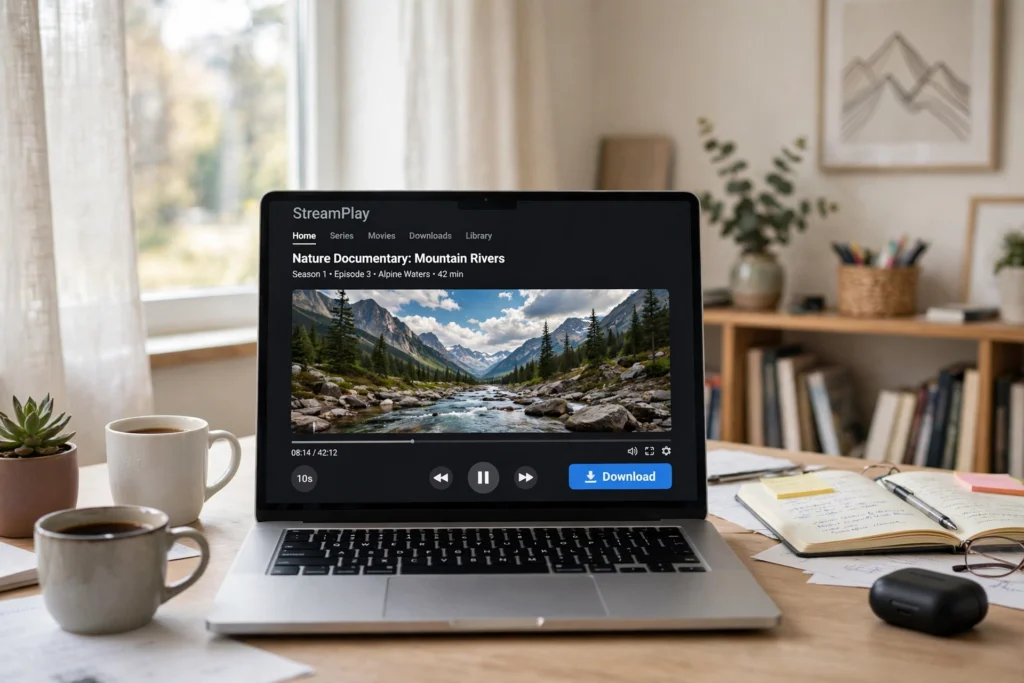
Google Takeout deserves its own mention because it is the only official way to get a complete copy of everything you have uploaded, and many creators do not know it exists until they need it. The process starts in your Google Account settings, where Takeout lists every Google service with data you can export, and selecting YouTube lets you choose whether to export all videos or only some of them, along with options for the archive format and size. Google then prepares the export in the background and emails you a download link when it is ready, which can take minutes for a small channel or much longer for a large one with years of uploads.
The files you get from Takeout are your own original uploads, and they are yours to keep, edit, re-upload, or store as backups without any of the restrictions that apply to Premium downloads of other people’s videos. That makes Takeout the right tool for channel backups and for recovering a video whose original file you have lost, and it is worth running an export every few months if your channel matters to you, because a hard drive failure or a lost laptop can otherwise wipe out years of work in a single afternoon.
What YouTube’s Rules Actually Allow
YouTube’s Terms of Service are clear about downloading, and they allow it only in two situations: when the service itself expressly authorises it, such as the official Download button or the Studio download feature, or when you have prior written permission from YouTube and the relevant rights holders. That is the whole list, and it means there is no general right to download other people’s videos, even if you only want to watch them yourself and have no intention of sharing them. The rule protects creators, because a downloaded copy that can be re-uploaded elsewhere takes views and income away from the person who made the video.
This is also why so many third-party downloader sites come and go, because they operate outside the rules and YouTube regularly blocks them, and the ones that survive often pay for themselves with adverts, bundled software, or data collection that has nothing to do with helping you watch a video offline. If a site promises to download any video in 4K for free, it is worth asking how it makes its money, because the answer is rarely one you would be comfortable with, and the safest assumption is that any tool outside the two official routes is a risk to your device, your account, or both.
For audio-only listening, a YouTube to MP3 converter free search raises the same questions about permission and the creator’s rights.
Third-Party Downloaders and the Risks
The risks of third-party downloaders are not theoretical, and they fall into three groups that are worth understanding before you type a video link into a strange website. The first is security, because downloader sites are a common way to distribute malware, browser hijackers, and unwanted software, and a single careless click on a fake download button can install something that is very hard to remove. The second is your account, because YouTube can restrict or close accounts that break its rules, and downloading through unauthorised tools is exactly the kind of rule-breaking that the system is designed to detect.
The third risk is the creators themselves, because every video downloaded and re-uploaded without permission takes views away from the person who made it, and for smaller creators those views are the difference between a channel that survives and one that does not. There are legitimate exceptions, such as videos released under a Creative Commons licence, which the creator has expressly allowed to be reused, and content you own or have written permission to copy, but those are the exceptions rather than the rule. If you genuinely need a full-quality file of someone else’s video, the honest route is to ask the creator, and many of them will say yes when the request is polite and the purpose is clear.
Step by Step: Downloading on Phone and Computer
Downloading with Premium is simple once you know where the button is, and the steps are nearly identical on every device. On a computer, sign in to YouTube with your Premium account, open the video’s watch page, and click Download below the video player, and the icon turns solid once the download is finished, with your saved videos listed under Downloads in the left-hand menu. On Android, open the watch page in the YouTube app and tap Download below the video, and on iPhone or iPad the steps are the same, with the video appearing in your Library under the Downloads playlist.
If your connection drops during a download, the progress resumes automatically when you reconnect, which makes it practical to save a playlist of videos before a journey rather than downloading them one at a time. You can also turn on Smart Downloads in the app, which automatically saves recommended videos based on your watch history when you are on Wi-Fi, so there is usually something ready to watch when you open the app offline. To manage storage, check the download quality setting first, because saving everything at the highest quality will fill a phone quickly, and a lower setting is often indistinguishable on a small screen.
If the button is missing on a particular video, YouTube Help explains which videos are eligible for offline download.
Troubleshooting Downloads That Fail
When a Premium download fails, the cause is usually one of a small number of things, and working through them in order solves most problems without any drama. First, check that you are signed in to the Premium account and that the membership is still active, because a lapsed payment or a different signed-in account is the most common reason the Download button disappears. Second, check that the video itself is eligible for offline viewing, because some videos are excluded by the creator or by licensing rules, and no setting on your device will change that.
Third, check your storage, because a phone that is nearly full will stop downloads without a clear error message, and deleting old downloads or unused apps usually fixes it straight away. Fourth, check the download quality setting, because a 4K download needs far more space and a far more stable connection than a standard one, and dropping to a lower quality can turn a failing download into a working one. If none of that helps, try signing out and back in, updating the app, or clearing the app cache, and if the problem persists, YouTube’s own help pages cover the current eligibility rules and interface details better than any third-party guide.
Conclusion
A YouTube video downloader 4K search has a simple, honest answer, and it is that the official routes are the only ones worth using. YouTube Premium gives you reliable offline playback of other people’s videos at the quality you choose, YouTube Studio gives you proper MP4 files of your own uploads, and Google Takeout gives you a complete backup of your whole channel. Third-party downloaders promise more and deliver less, and they carry risks to your device, your account, and the creators whose work you enjoy.
The practical move is to match the method to the video, and to accept the trade-off that comes with it, because Premium gives you convenience without a portable file, while Studio and Takeout give you files but only for your own work. Once you know which route fits your goal, downloading becomes a two-minute job rather than a search through risky websites, and your videos will be there when you need them, in the best quality the original upload allows.
Is there a free YouTube video downloader 4K that is legal?
There is no free official way to download other people’s YouTube videos in 4K, because the official route is YouTube Premium, which is a paid membership, and free third-party downloaders work outside YouTube’s Terms of Service. The free legal options cover your own videos only, through YouTube Studio and Google Takeout, and Creative Commons videos that the creator has expressly released for reuse, so if a free tool promises any video in 4K, it is not operating within the rules.
Can I download a YouTube video in 4K without Premium?
No, you cannot officially download someone else’s YouTube video in 4K without Premium, because the Download button is a Premium feature and there is no free official alternative for other creators’ videos. Your own uploads are the exception, and you can download those as MP4 files through YouTube Studio without paying anything, although the file usually comes back at 720p or 360p rather than 4K, depending on the original upload.
How long do YouTube Premium downloads last?
Downloaded videos can be played offline for up to 29 days before YouTube needs to reconnect and check your membership, and in some regions that window is as short as 48 hours without an internet connection. You must stay signed in to the same Premium account that saved the video, and if your membership lapses, the downloads stop working until you renew, so the feature is a subscription benefit rather than a permanent copy.
Why is there no Download button on some videos?
Some videos are not eligible for offline download, and the usual reasons are that the creator or the rights holder has restricted it, the video is a live stream or a very recent upload, or licensing rules in your country exclude it. Music videos can also be treated differently from other videos, and Premium Lite covers most non-music videos but leaves some music-focused content out, so if the button is missing, the video is almost certainly restricted rather than your app being broken.
Can I save a YouTube video to my computer as an MP4 file?
You can only save a video as an MP4 file if it is your own upload, through YouTube Studio, or if you have the creator’s written permission, because YouTube does not offer a general MP4 export for other people’s videos. Premium downloads are encrypted copies for playback inside YouTube, not standalone files, so if you need a portable file of someone else’s video, the correct step is to ask the creator for permission or for a copy directly.